Sankyu POS is a software that will help you to manage your inventory and accounting. We believe that this software is suitable for both wholesale and retail buisness model and an ideal product for any Super Shop. This user friendly software is fully responsive and has many features. Hope that this software will be helpful to manage your buisness inventory.
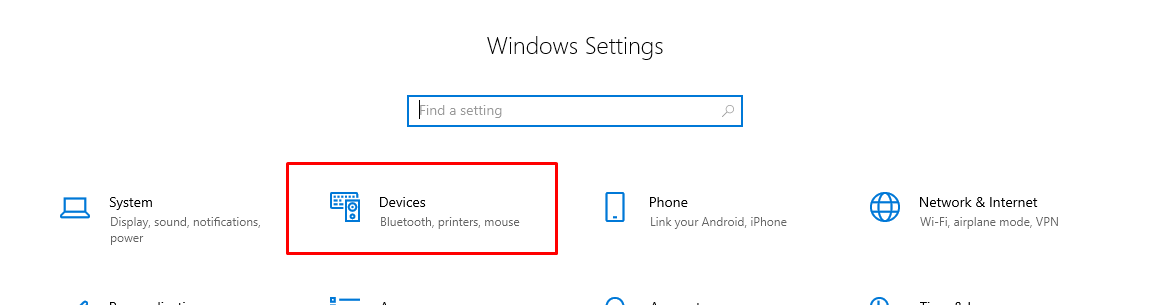
First you have to install your printer driver. Then go to settings and select Devices.
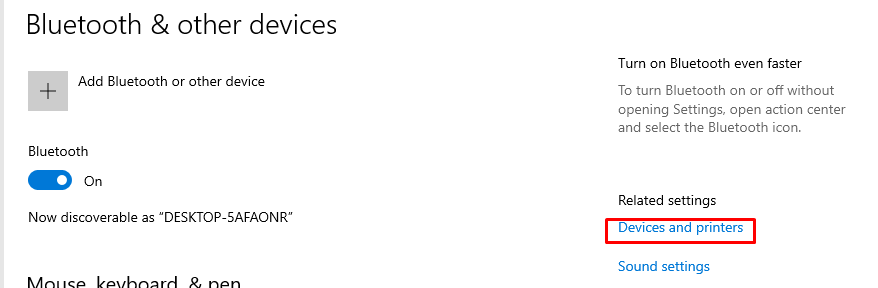
Then go to Devices and printers.
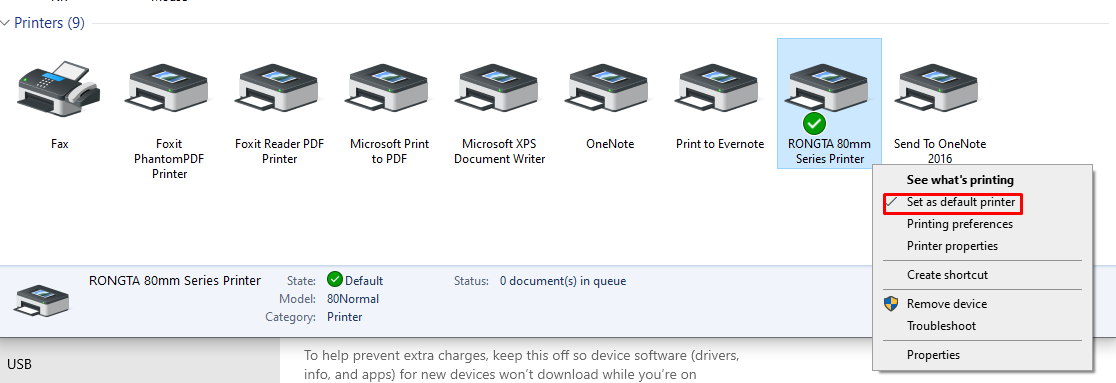
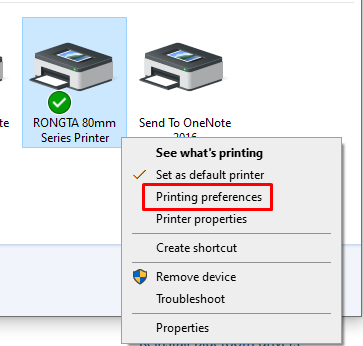
Set your POS printer as default printer.
Then go to Printing preferences.
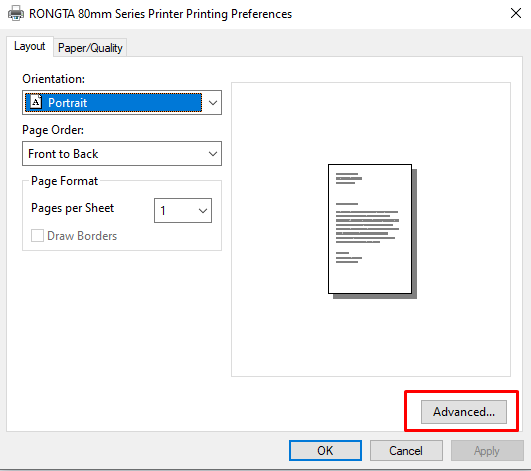
Then go to Advanced.
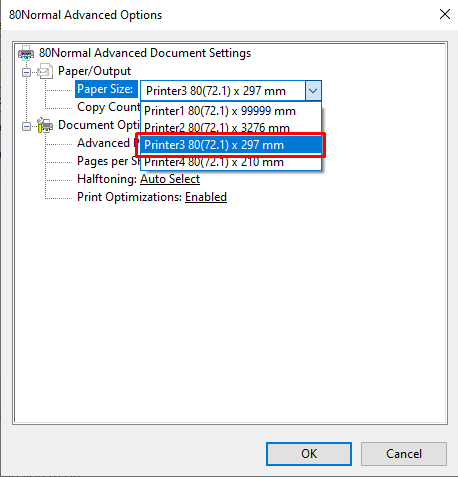
Select 3rd option of paper size and click Ok.
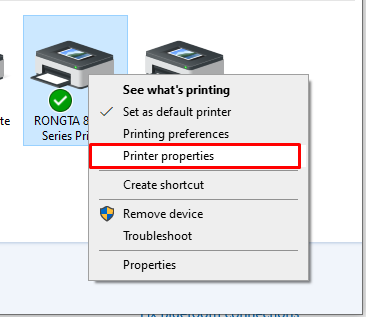
After that go to printer properties.
Go to device settings and select 3rd option of auto.
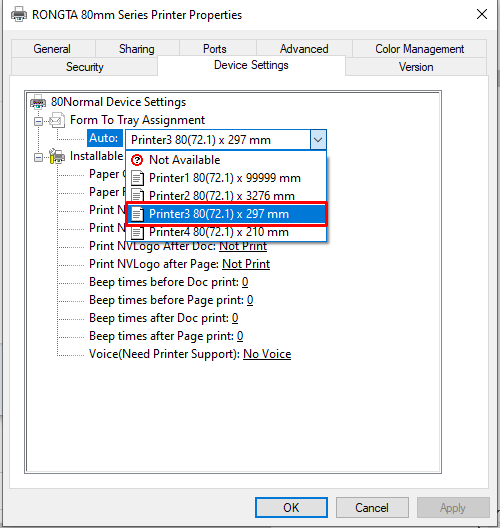
Please make sure you choose correct paper size(3rd option) when you want to print the invoice.
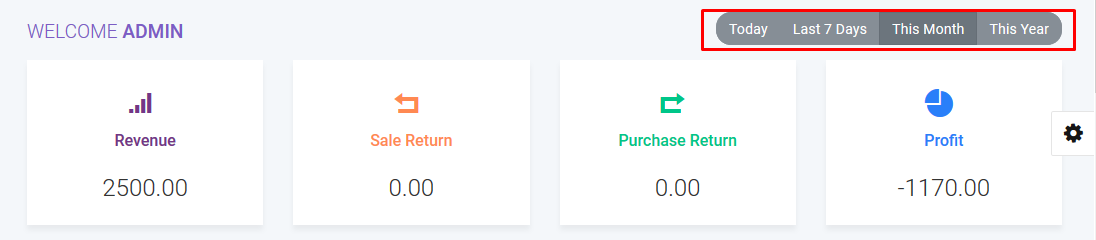
We have a gorgeous looking dashboard for our customer from where they get Revenue, Sale Return, Purchase Return and Profit information of today / last 7 days / current month / current year at a glance by one click.
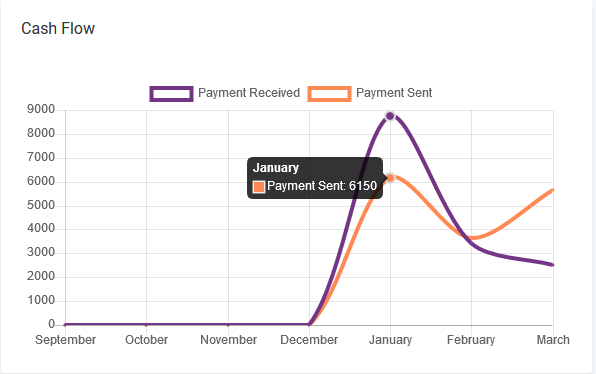
You will get information of your cash flow that means how much money you are earning and how much money you are spending from this line chart.
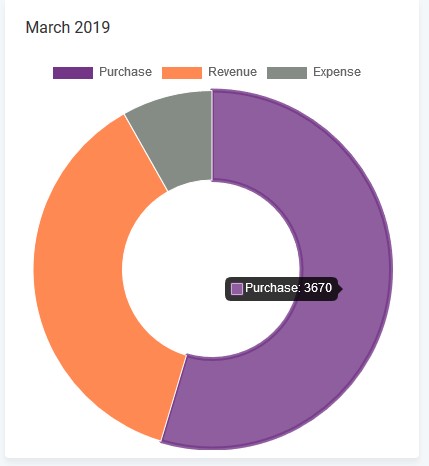
You also aware of your current month's purchase, revenue expenditure froms this doughnut chart.
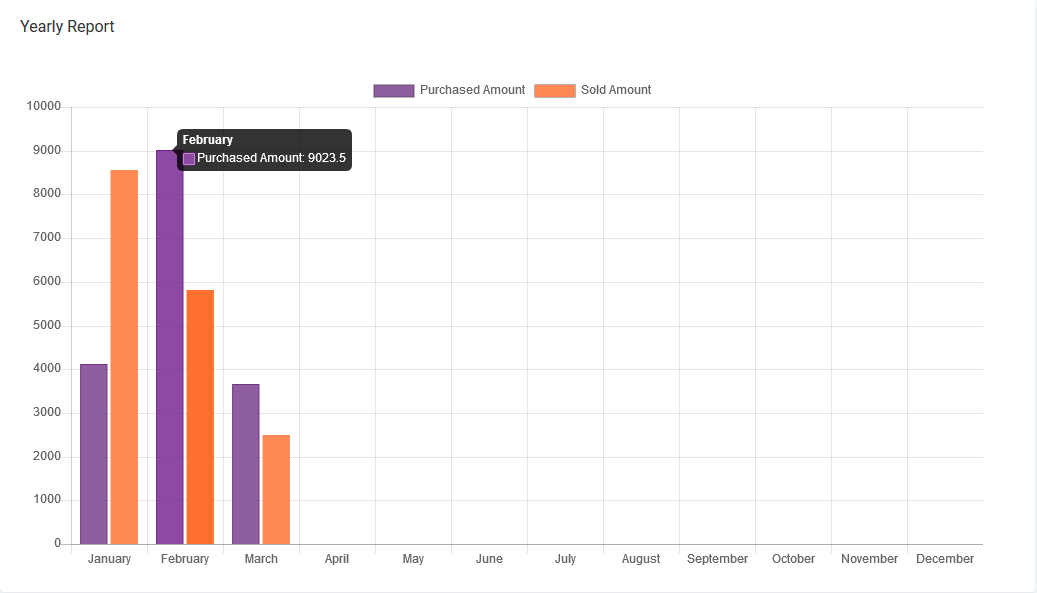
A bar chart shows Yearly report of purchases and sales of current year.
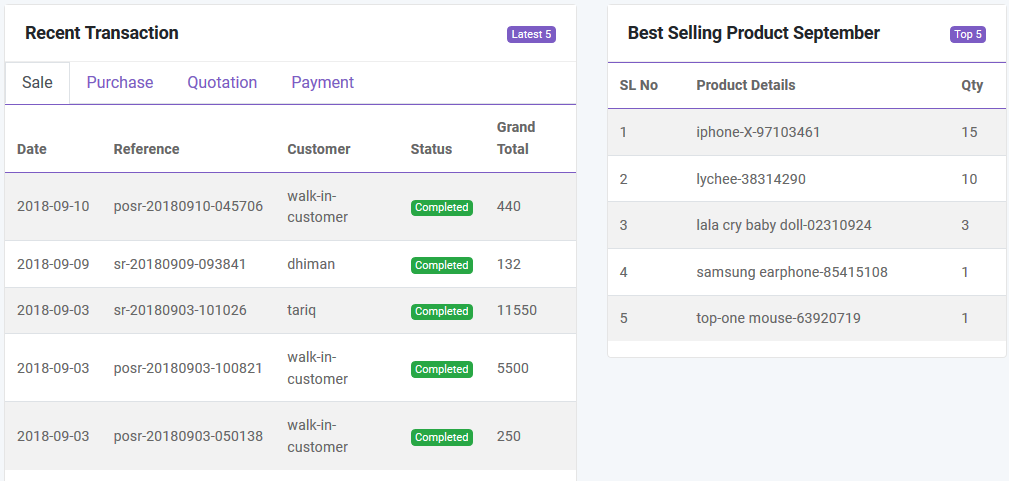
From Dashboard You will also get recent transaction(sale, purchase and payment) and top 5 best selling product of current month and current year.
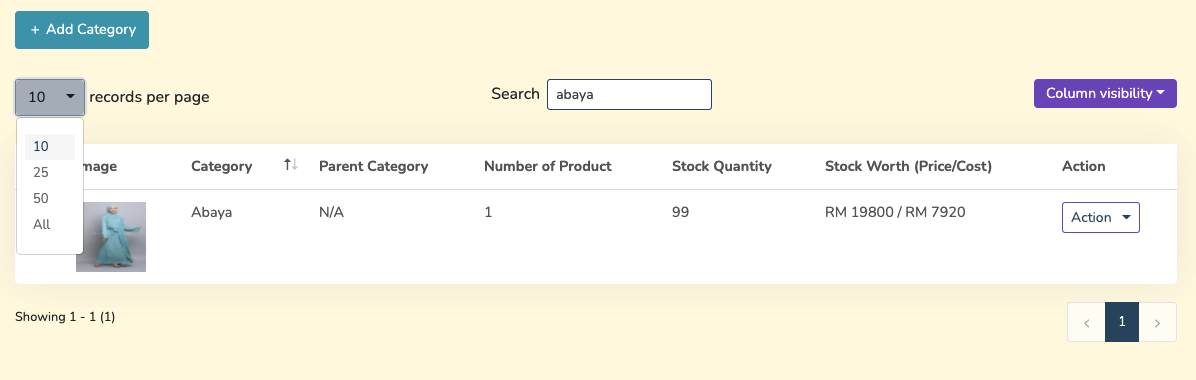
You can add, edit and delete product category

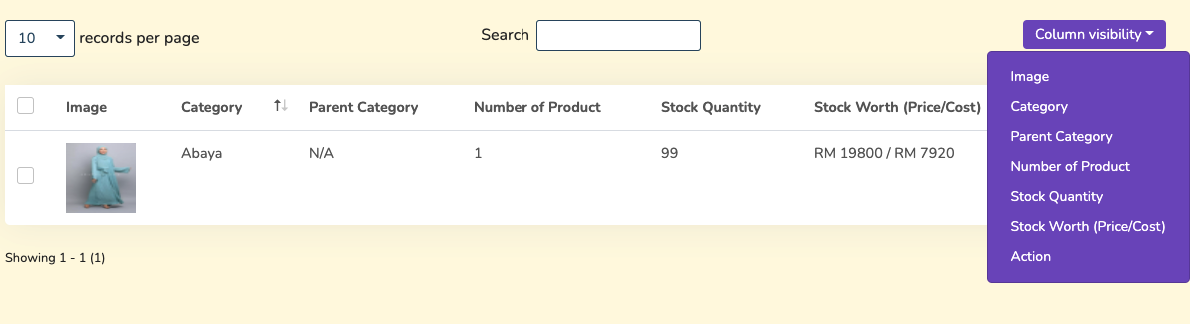
If you dont want to export any column you can do this by clicking Column Visibility button. From here you can choose column to remove from table.

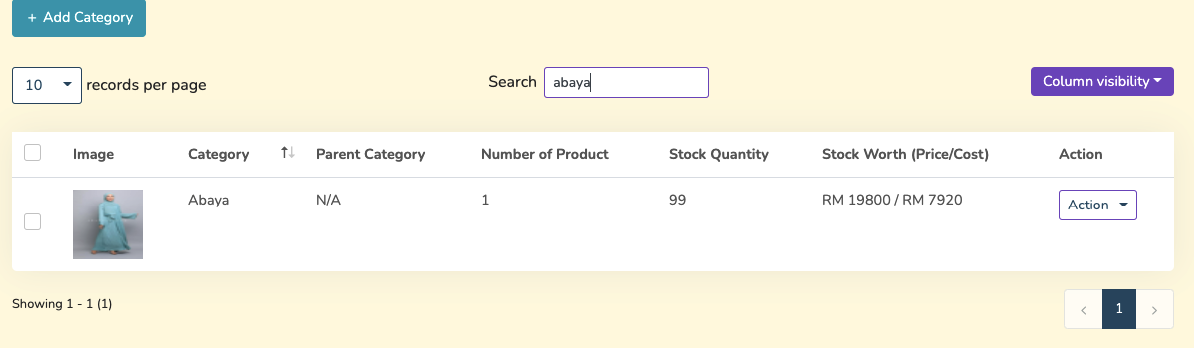
If you want to search anything from the table you can simply type the word in the search box.
You can also control the pagination from Show dropdown.
In product section you will just add general information of a product. To add stock you have to purchase that product.
You can add, edit and delete product.
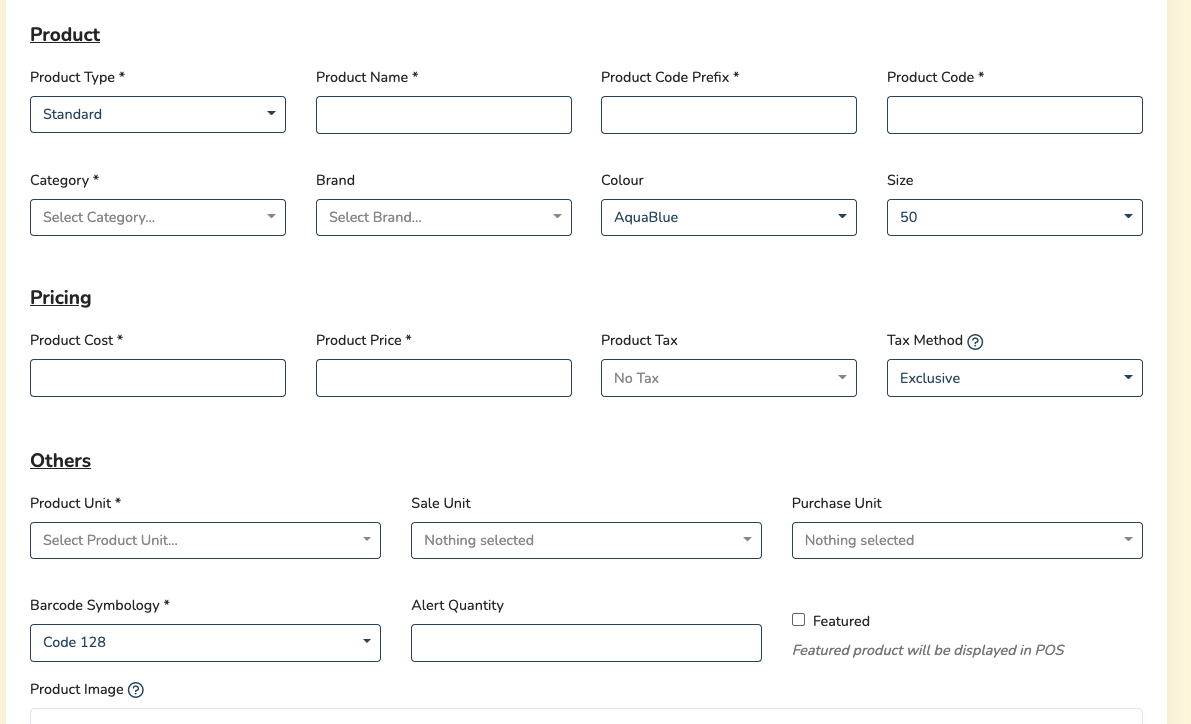
To add product some initial setting need to setup for example, Category,Brand, Colour and Size. Product code will be auto create getting the data from product code prefix, colour and size.
* Each unique product need to register individually, for example Nike Tshirt with black colour and size M.
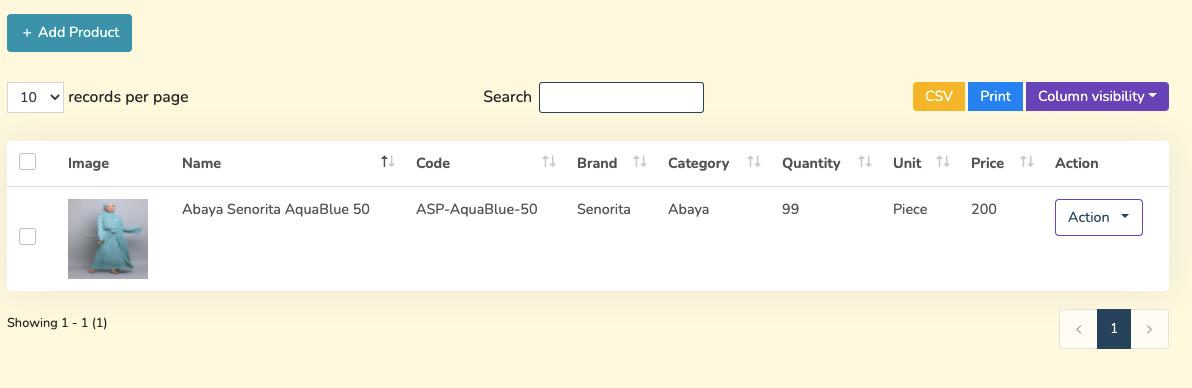
You can sort table data according to column

And you can search, export and print data from table that we discussed earlier in greater detail.
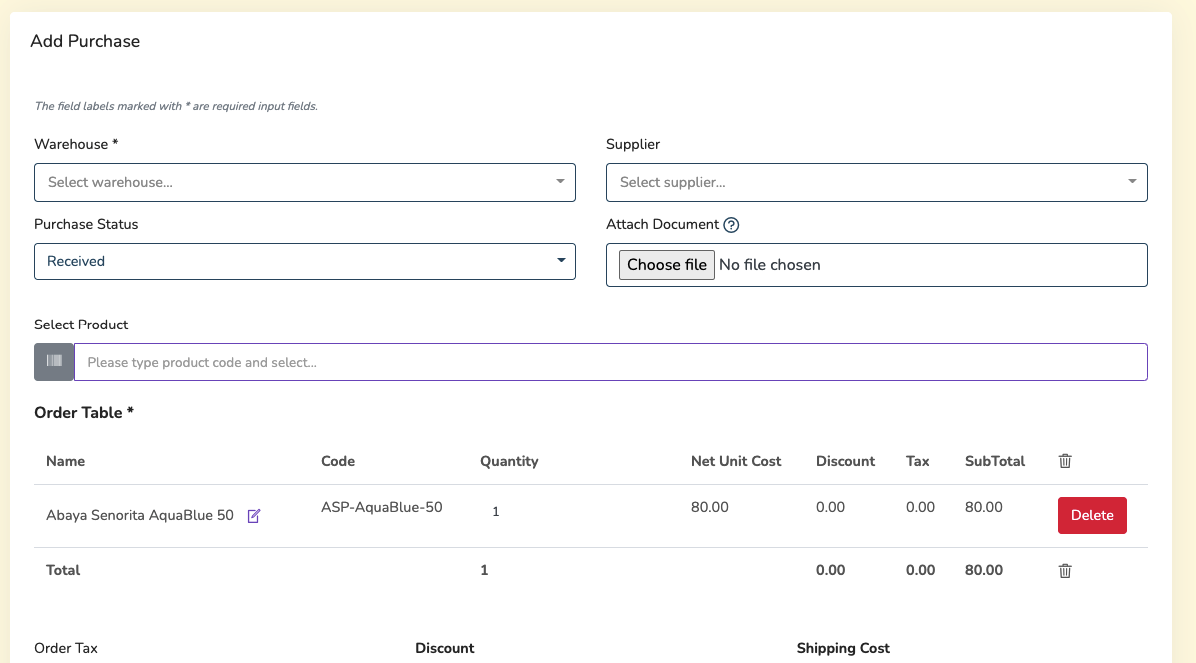
In Product section you just added general information of product. So where the stock comes from? To add stock you have to purchase that product for specific warehouse. This software is pretty smart that it will automatically update the stock quantity and you don't have to worry about it.
You can create purchase in Purchase module. By creating purchase the stock quantity of product will be increase. .There are three purchase status: Receive, Partial, Pending, Ordered. You can add product to order table by typing or scanning barcode of product
After creating purchase you will be redirected to purchase index page. You will get summary of purchase from table. To get details you just have to click in the table row.

You can make payment from Purchase table. You can make payment with Cash, Gift Card, Cheque, Credit card and Deposit.


And you can search, export and print data from table that we discussed in Product section.
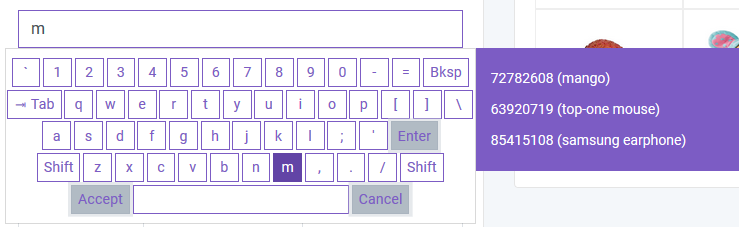
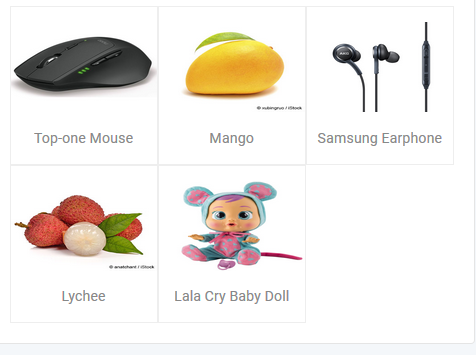
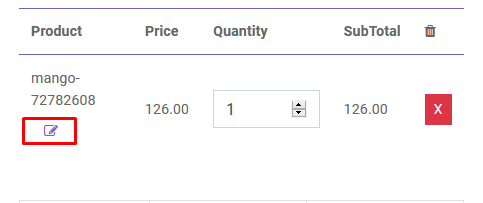
You can create sale from POS. Customer, Warehouse and Biller (representative of your company) will be automatically selected according to POS Settings under Settings module. Touch screen keybord is activated in POS module. You can add product to order table by typing or scanning barcode of product. Featured Product will be displayed in the right side. You can also add product by clicking product image. You can edit product info from order table.
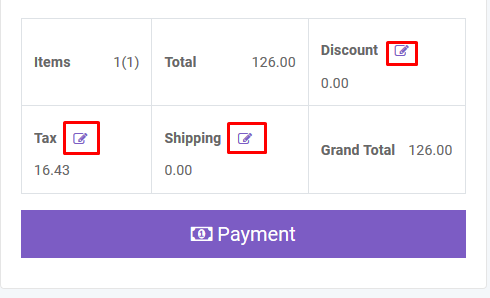
To add order discount, order tax and shipping cost you just have to click the button that are shown below. To finalize the sale you have to click the Payment button.
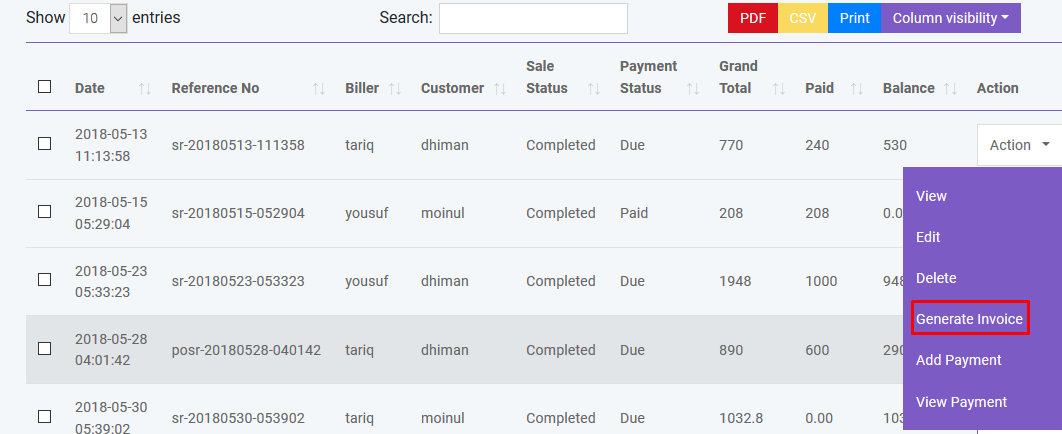
After creating sale you will be redirected to sale index page. A confirmation mail will be sent automatically to customer's email with sale details. You will get summary of sale from table. To get details you just have to click in the table row.
You can also generate Invoice automatically which is beutifully designed
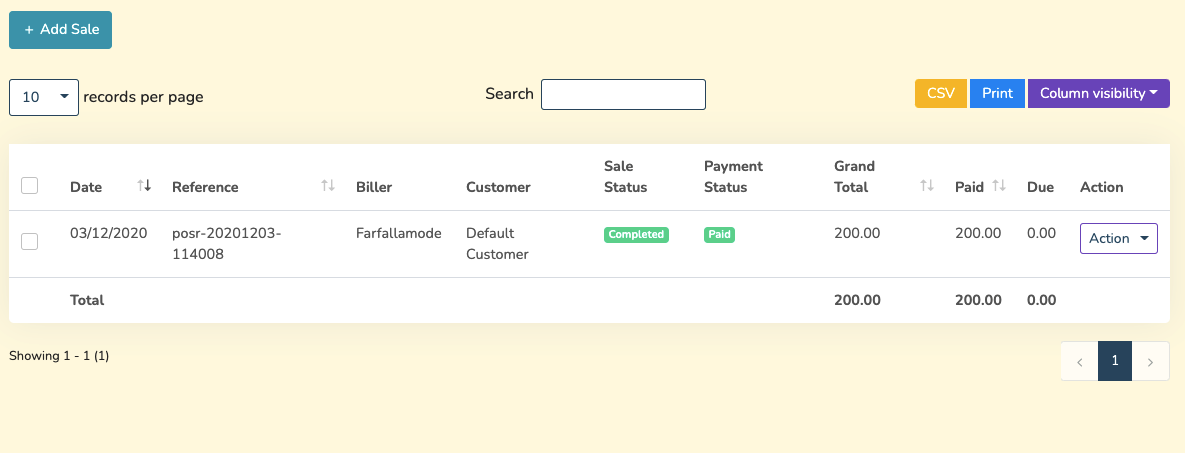
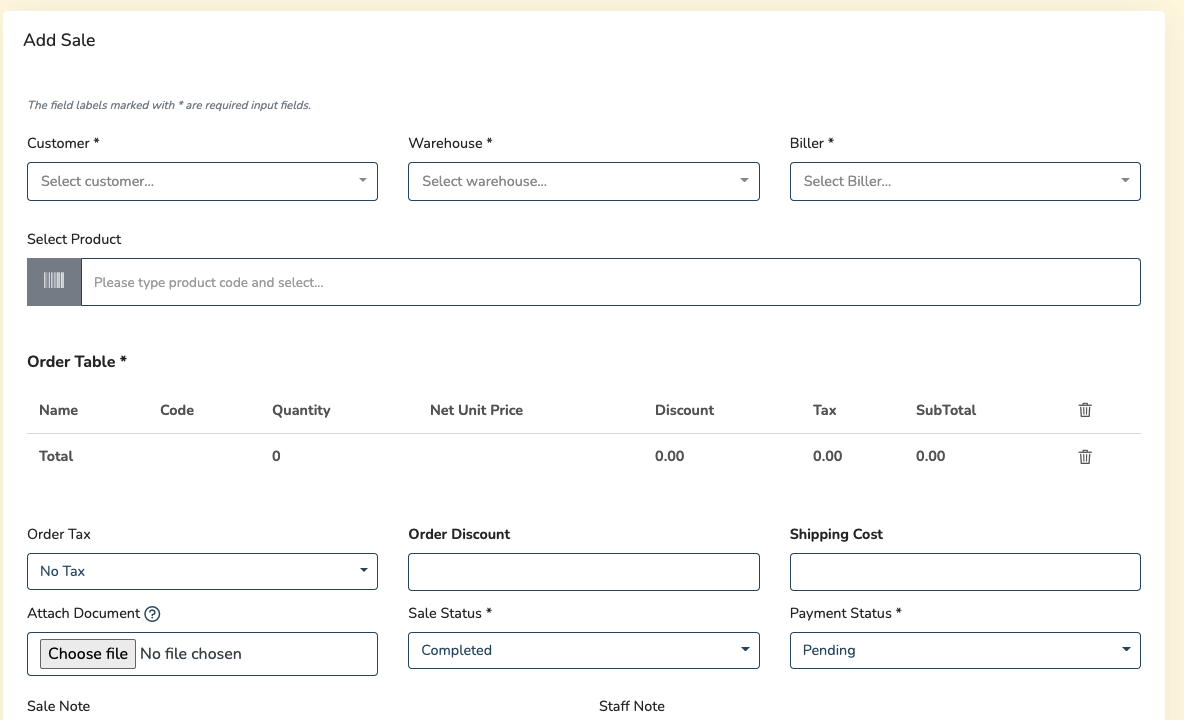
You can also create sale by clicking Add Sale button
You can make payment from Sale table. You can make payment with Cash, Cheque, Credit Card, Gift Card, Deposit and Paypal
And you can search and print data from table that we discussed in Product section.
You can add delivery for your sold products

And you can search, export and print data from table that we discussed in Product section.
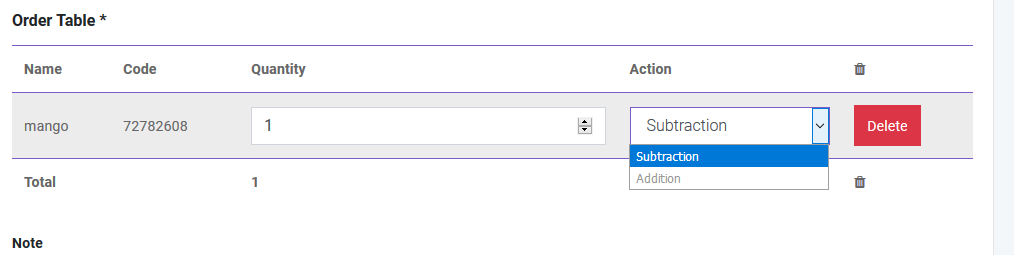
You can adjust product quantity in Quantity Adjustment module. There will be two operation: Subtraction and Addition

And you can search, export and print data from table that we discussed in Product section.
You can count your stock from this module. Two types are available: Full and Partial. In Partial type user have to specify brand, category, colour,size and the software will automatically count the stock for that brand,category,colour and size. Then this information will be written in CSV file which you have to download to finalize the stock count.After finalizing the stock count you can automatically adjust the quantity of products if it is necessary.
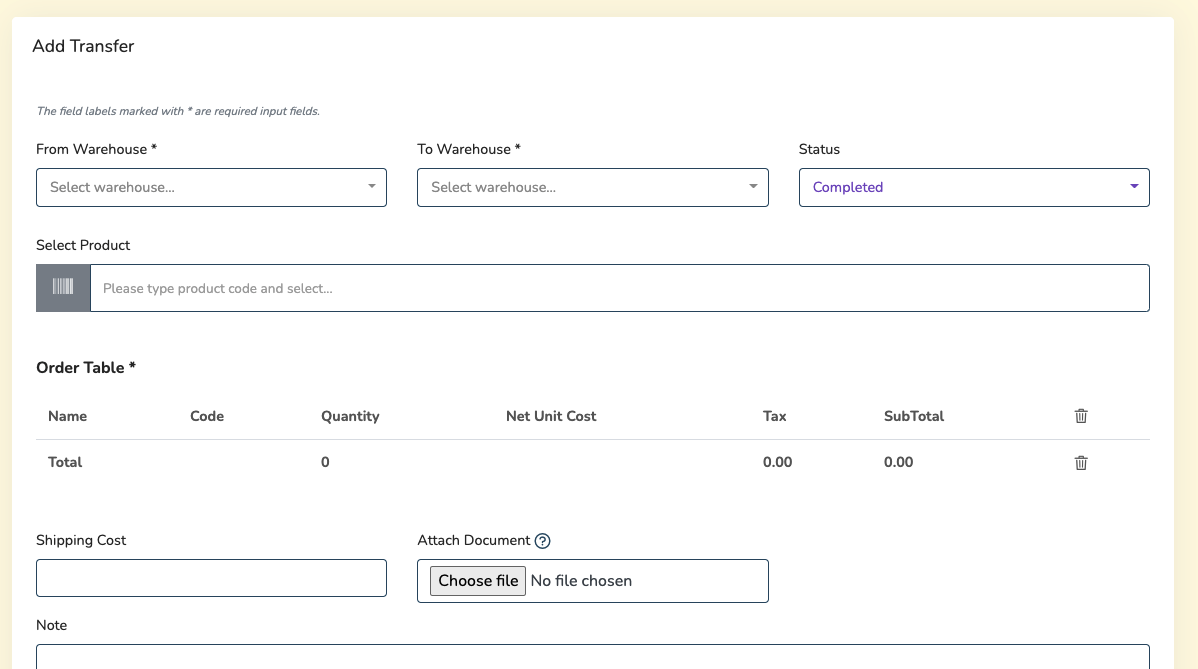
You can transfer your product from one warehouse to another in Transfer module.
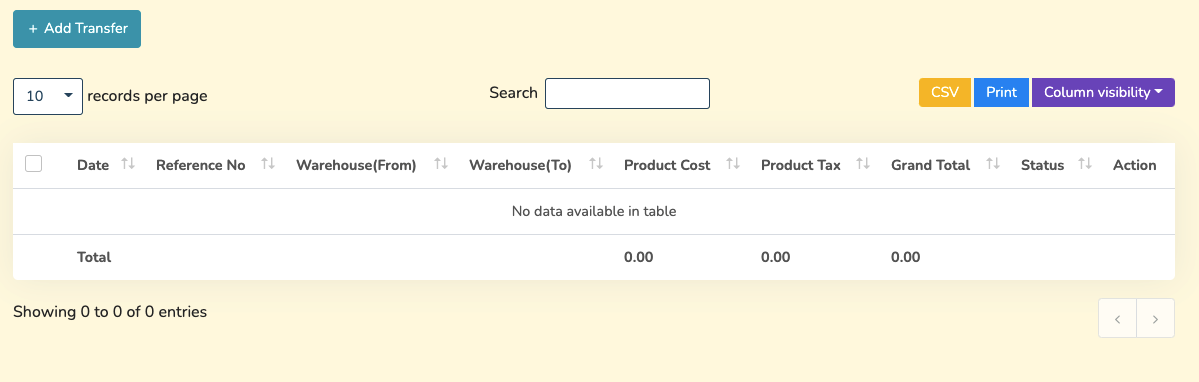
And you can search, export and print data from table that we discussed in Product section.
You can return your product with Return module. You can track return of both purchase and sale with this module.
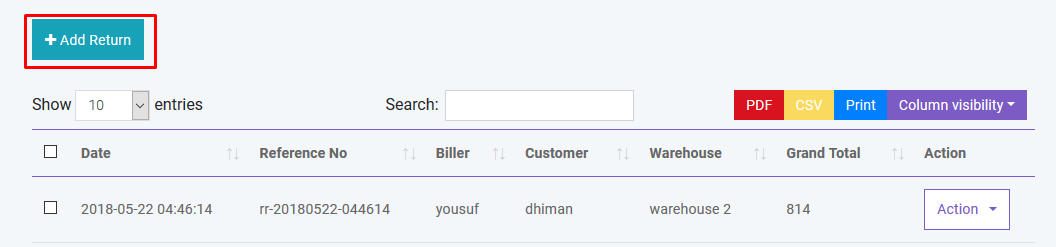
And you can search, export and print data from table that we discussed in Product section.
You can create,edit and delete account to link all your transactions. You can also set default account for sale. All the payments must be done under an account.
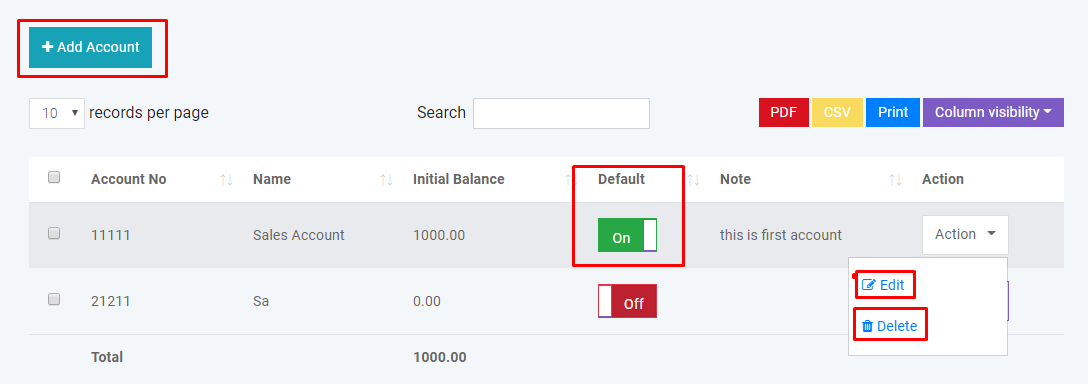
You can generate Balance Sheet of your accounts. You can also make Account Statement of an specific account to see all the transactions which has done with this account.
You can create, edit and delete user account
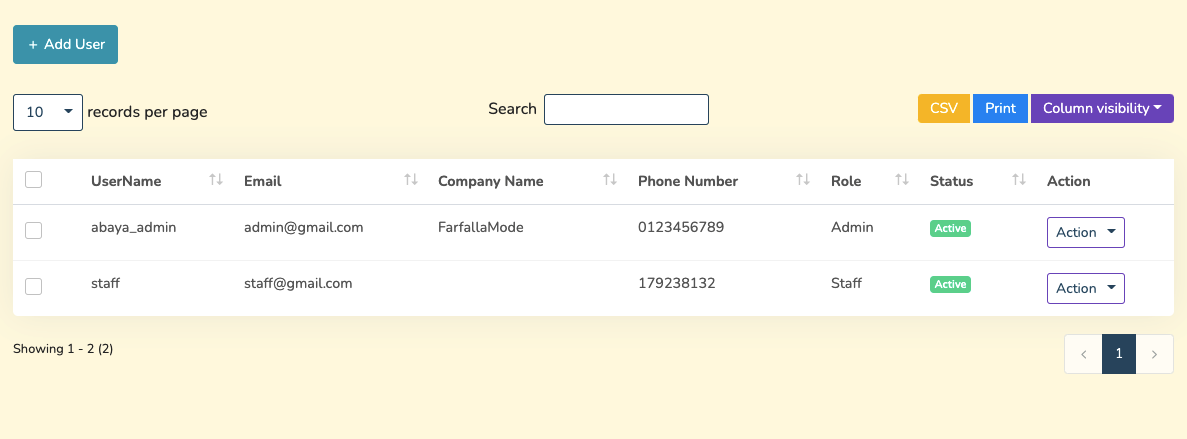
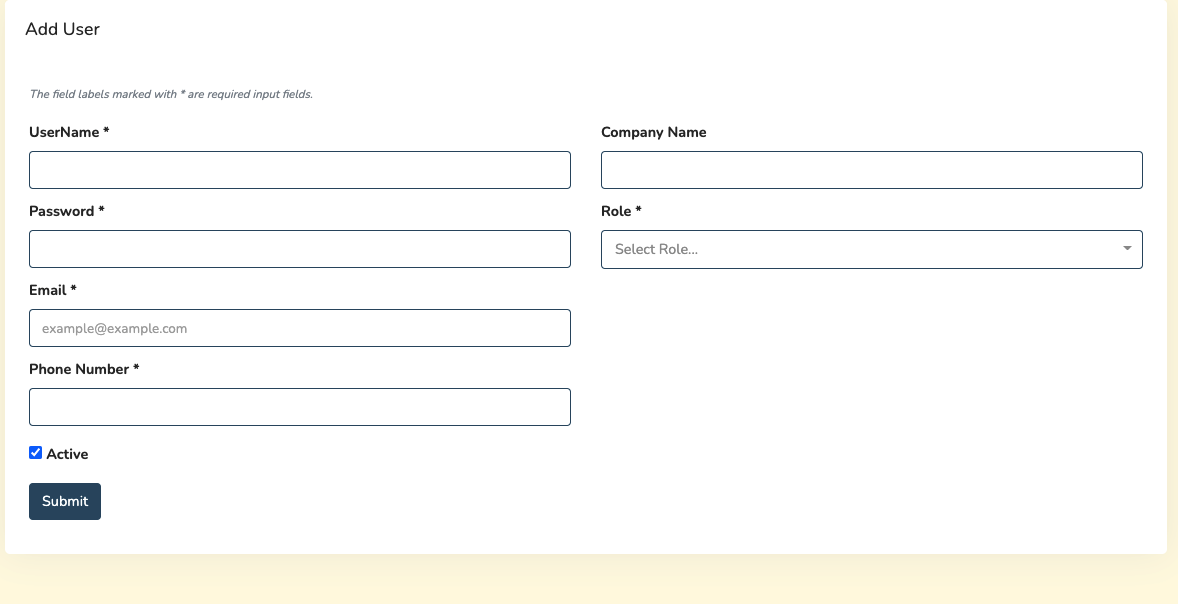
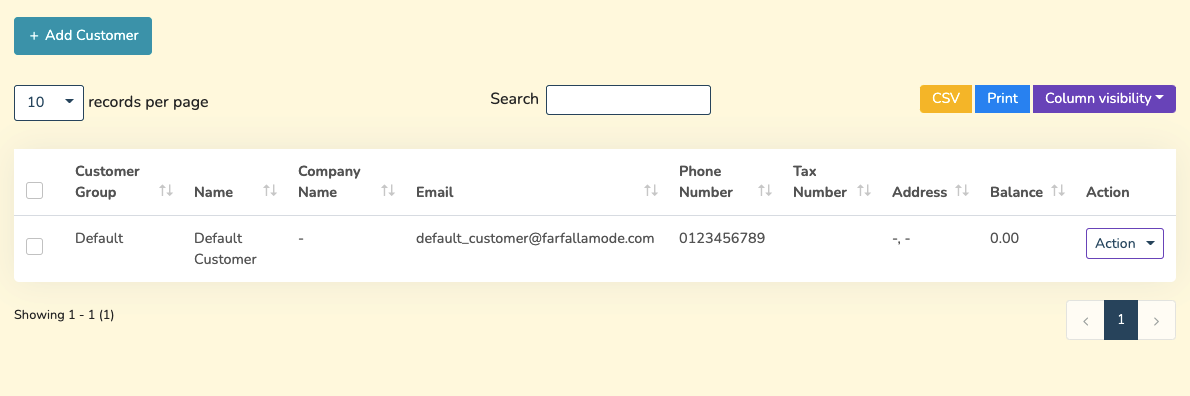
You can create, edit and delete customer.

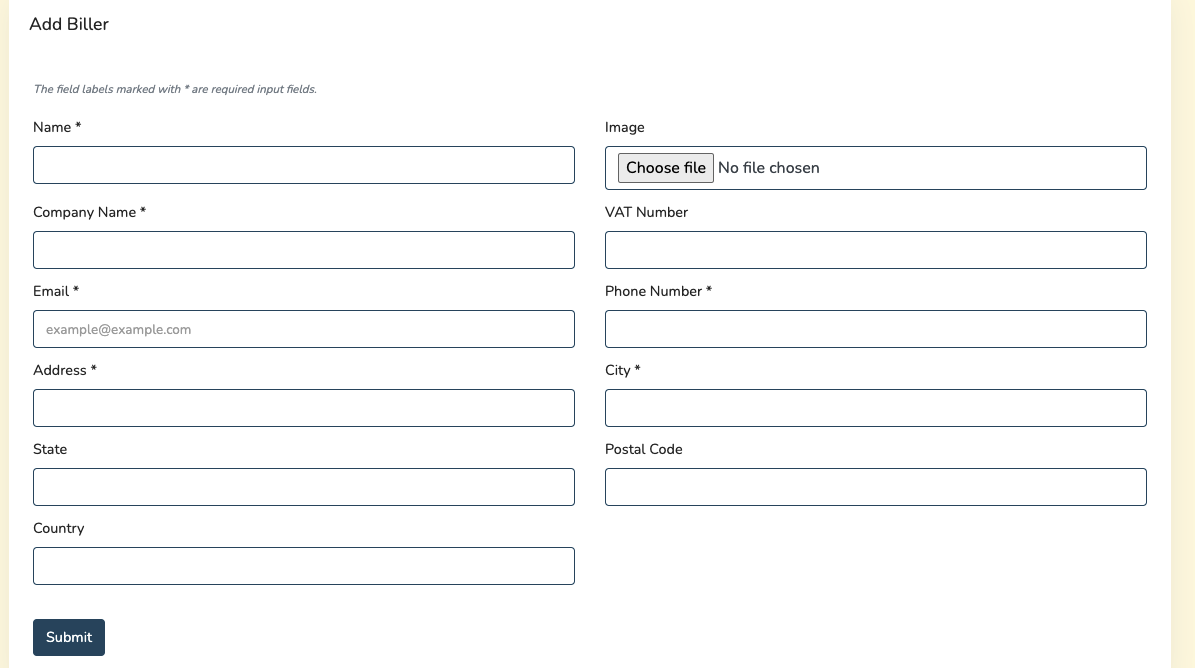
Biller is the representative of your company. You may have multiple company and you want to manage all your inventory from a single platform. So this is a solution for enterprise. You can create, edit and delete biller
Supplier is the people from whom you purchase products. You can create, edit and delete supplier
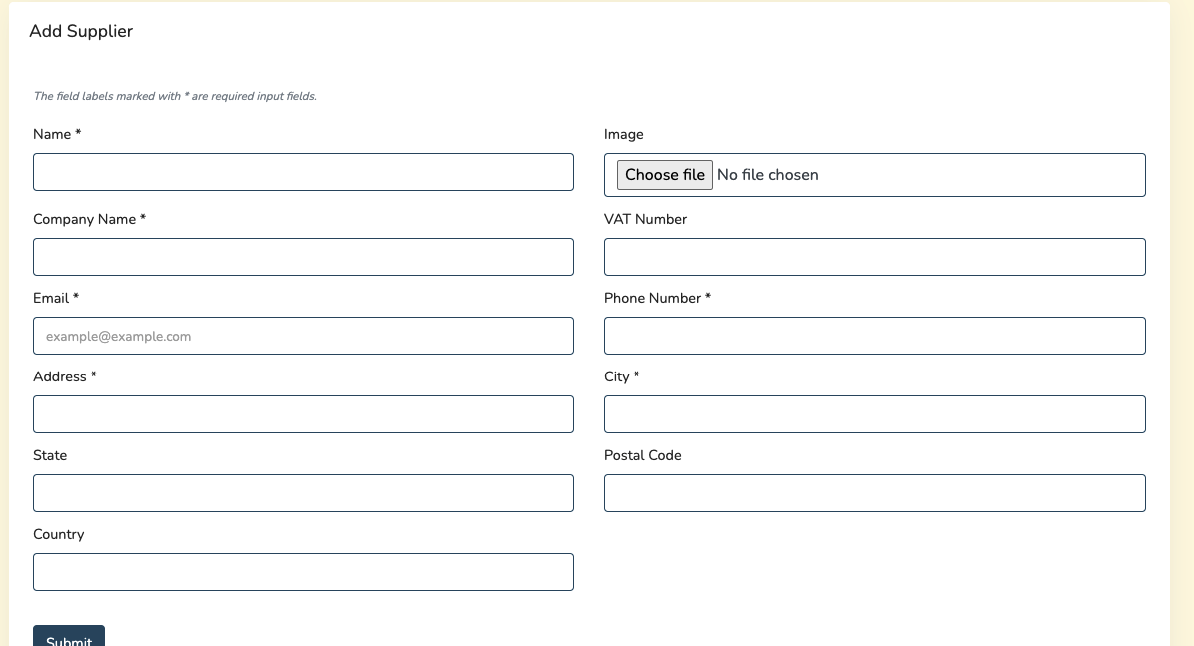
And you can search, export and print data from table that we discussed in Product section.
You can create generate various reports automatically by using SankyuPOS.
You can create, edit and delete user roles. You can controll user access by changing the role permission. So, under a certain role users have specific access over this software
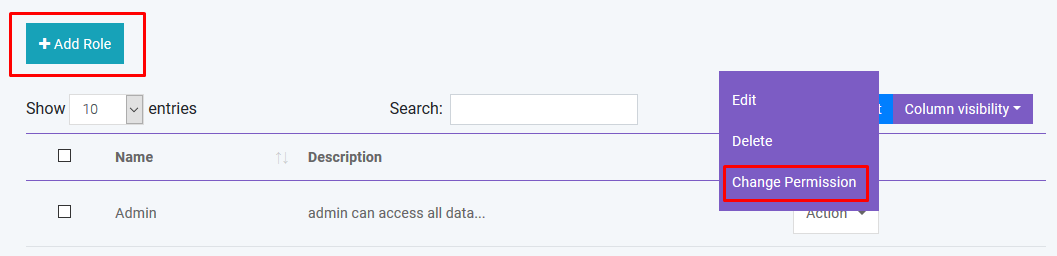
You can create, edit and delete warehouse. You can also import warehouse with CSV file

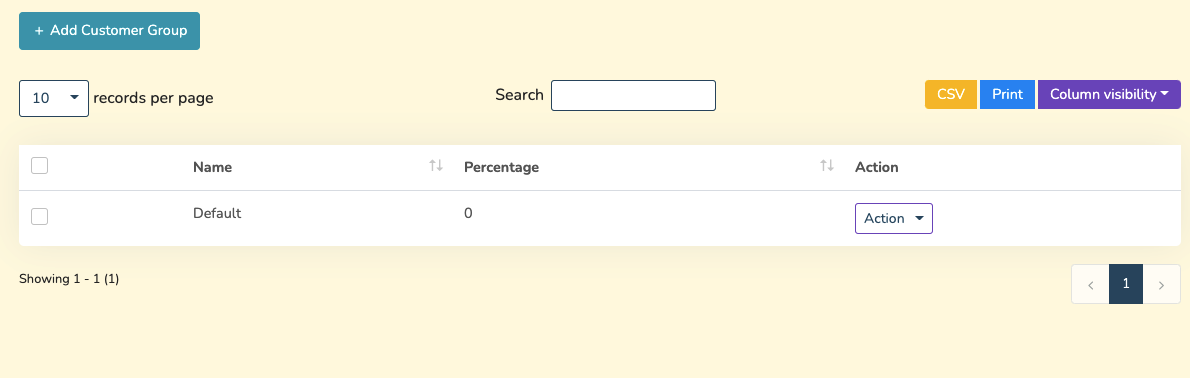
You can create, edit and delete customer group. Different customer group has different price over the product. You can modify this by changing price percentage in Customer Group module.
You can create, edit and delete product brand
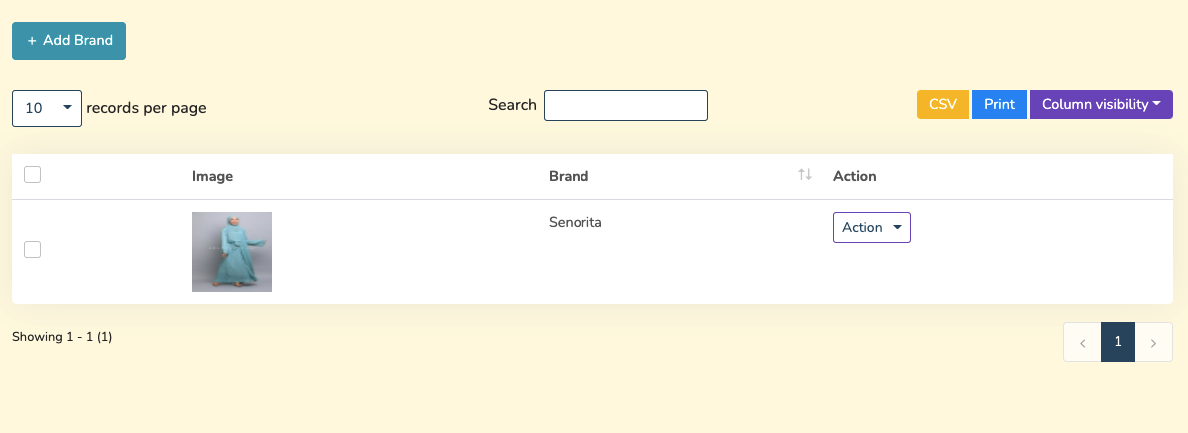
You can create, edit and delete product colour

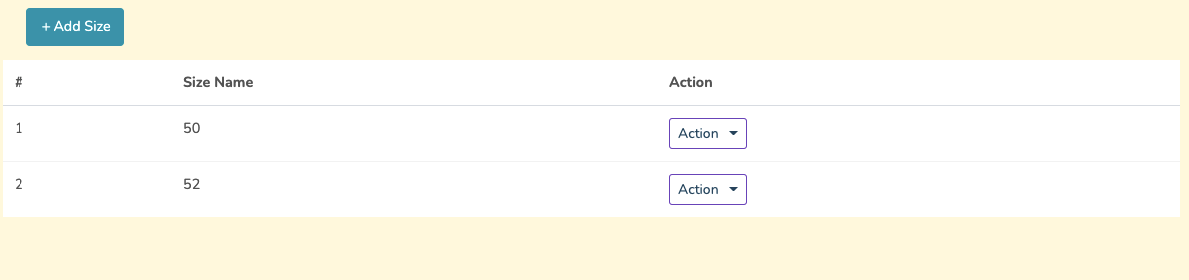
You can create, edit and delete product size
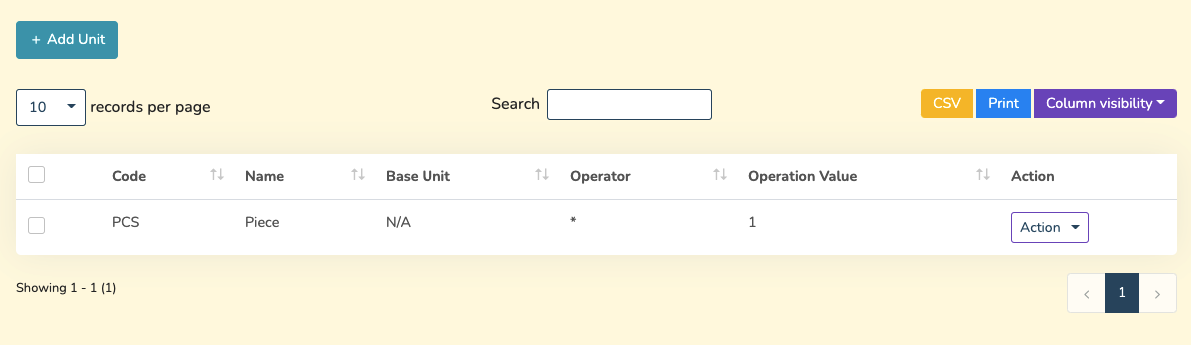
You can create, edit and delete product unit.
You can create, edit and delete different product tax
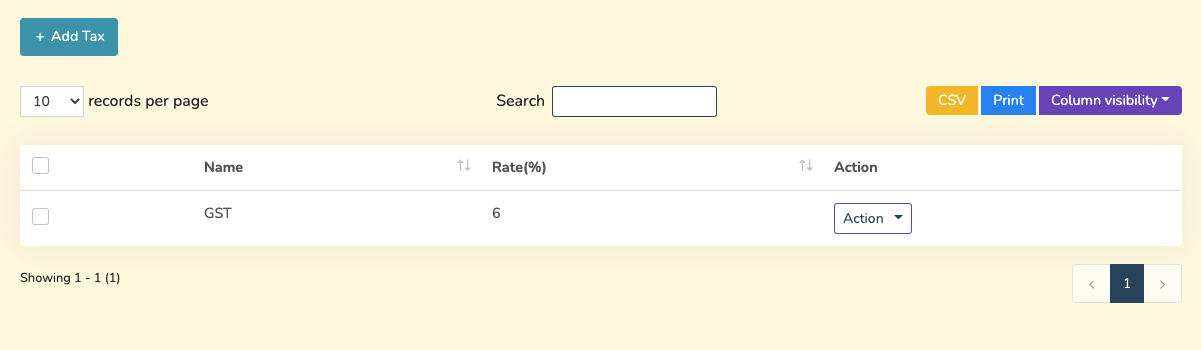
And you can search, export and print data from table that we discussed in Product section.
You can change Site Title, Site Logo, Currency, Time Zone, Staff Access and Date Format from general settings
You can update user profile info from this module
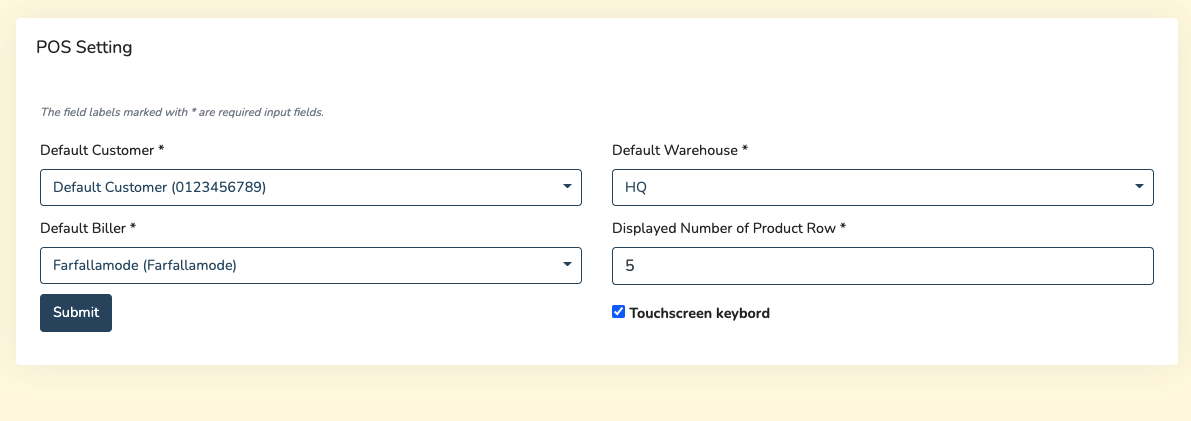
You can set your own POS settings from this module. You can set default customer, biller, warehouse and how many Featured products will be displayed in the POS module.